View completed student work and provide feedback directly from inside your class. Here’s how to navigate to the lesson content for any student.
Viewing student lesson content
To view a student’s completed work, follow the steps below:
- Navigate to Classes and select the class.

- Select the correct book and topic.
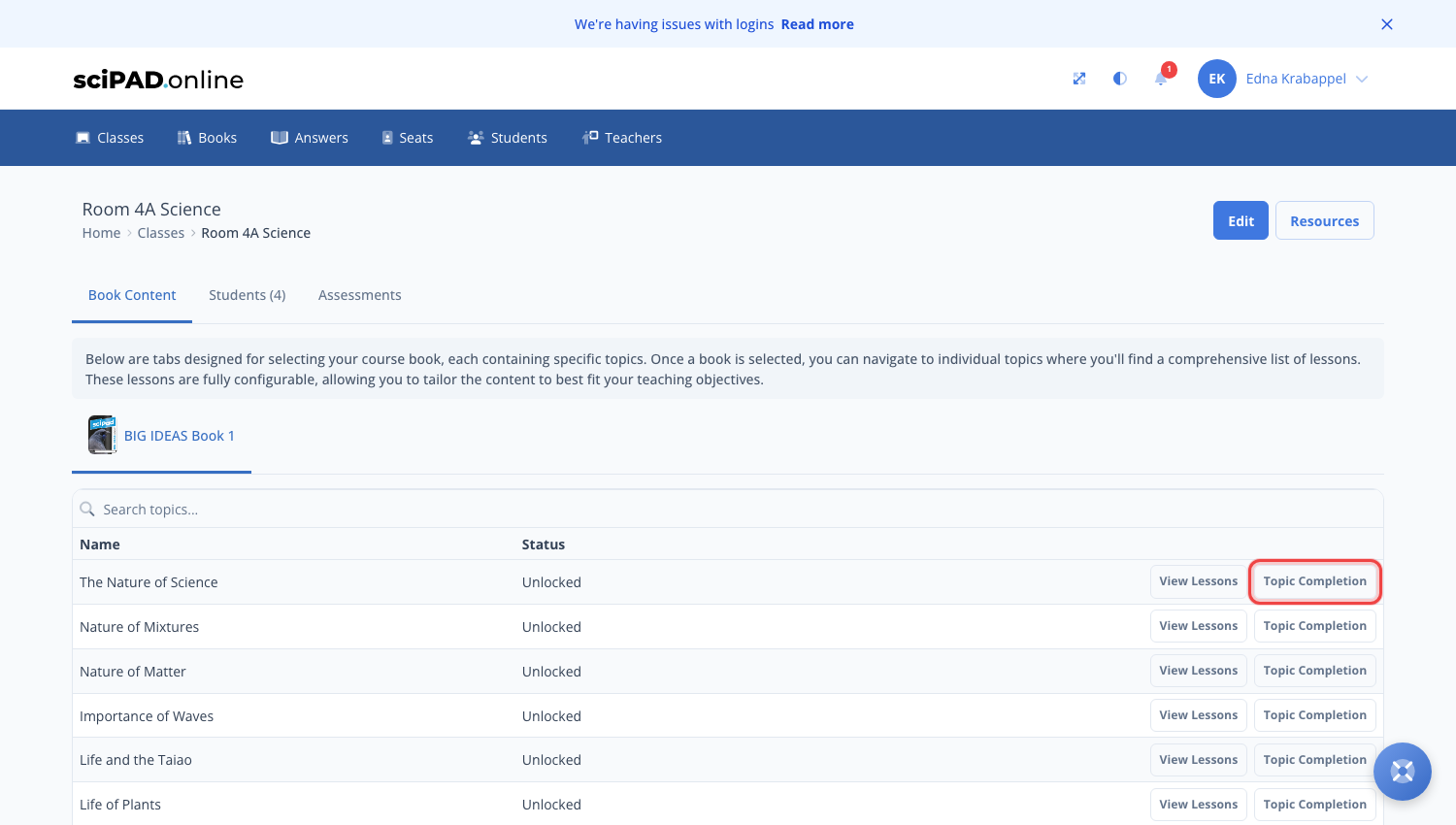
- Click the Topic Completion button on the right-hand side.

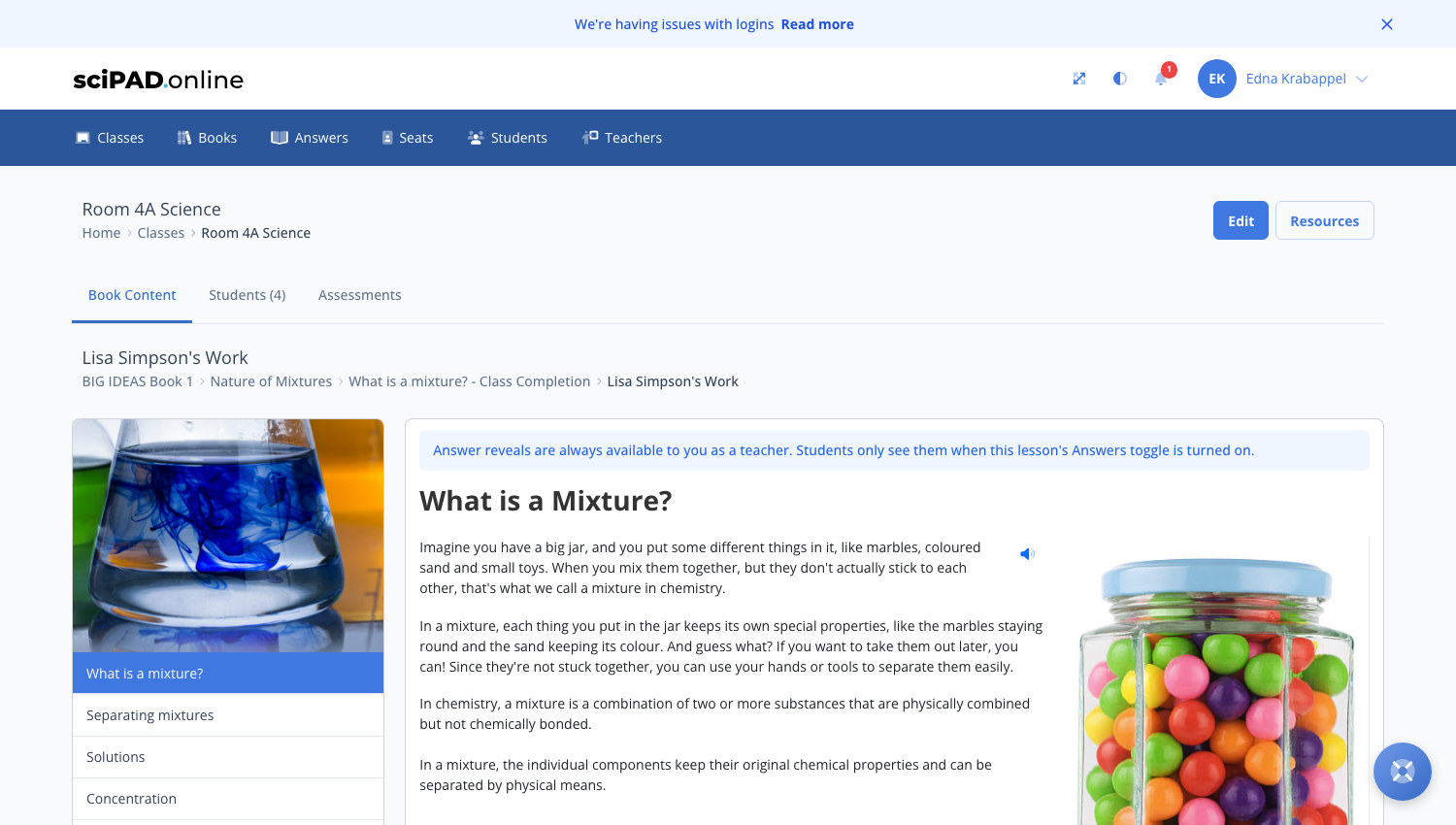
- Click a student's status icon - this will show the live lesson data for that student.
If a student has submitted their work, it will show a green tick under status.
Giving feedback
Feedback can be provided at any stage at the bottom of a lesson. To do this, navigate to the student’s lesson and scroll to the bottom. From there, a message can be sent, and the student can reply if needed. Students will receive a notification when they receive a message.
