Prior to students gaining access to the platform, their teacher must first create a class and distribute the class code.
Admin please note – you must only make your own classes. As teachers make classes they will automatically show on your account.
How to create your first class
- Navigate to the classes tab and click the Create your first class button in the centre (this moves to top right after the first class is made).
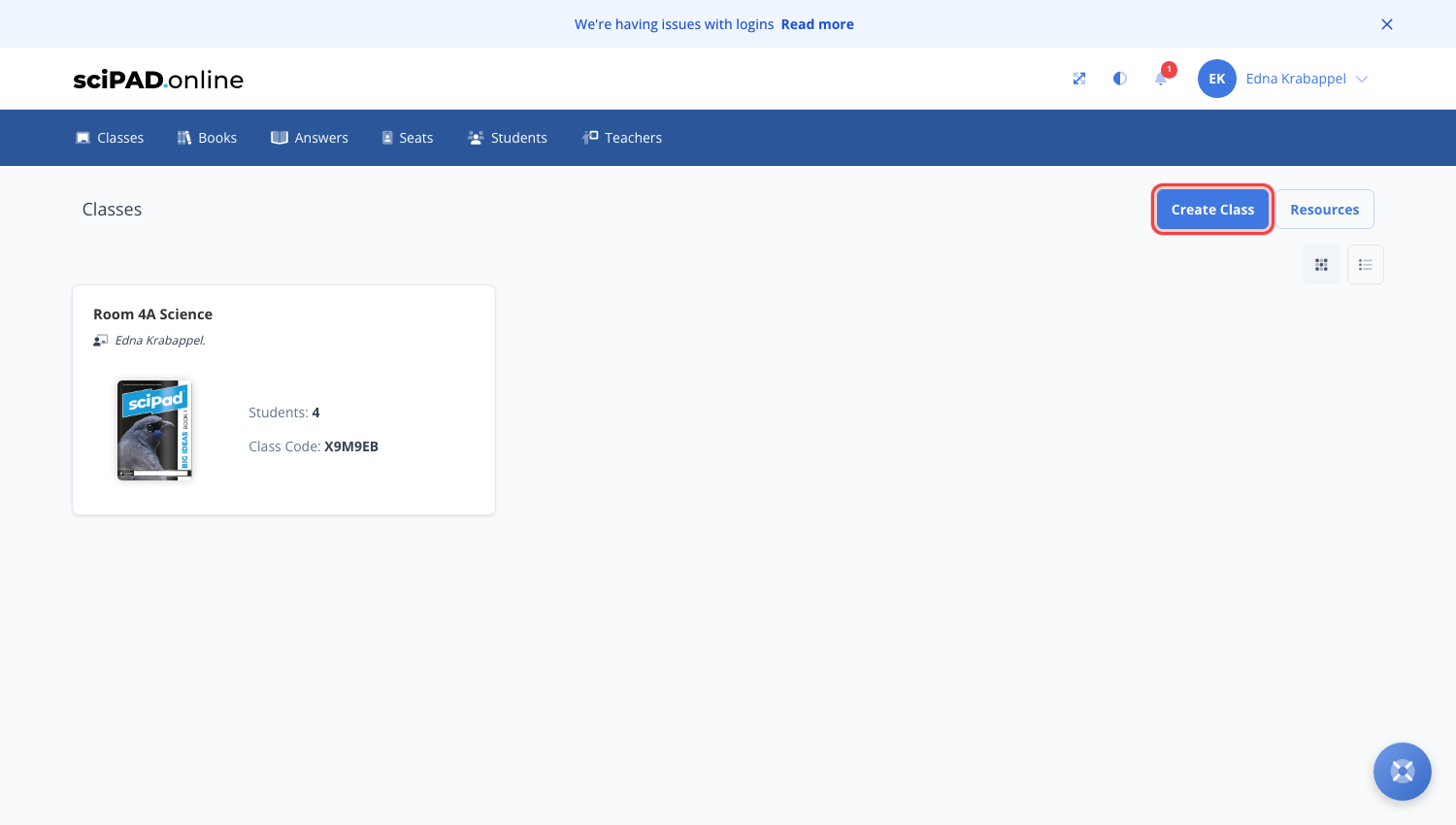
- Add your class name.
- Add your book by clicking book/s. In this step you can add multiple books to the class. The included books will show as green with a tick icon. Click again to remove a book.
Click Save.
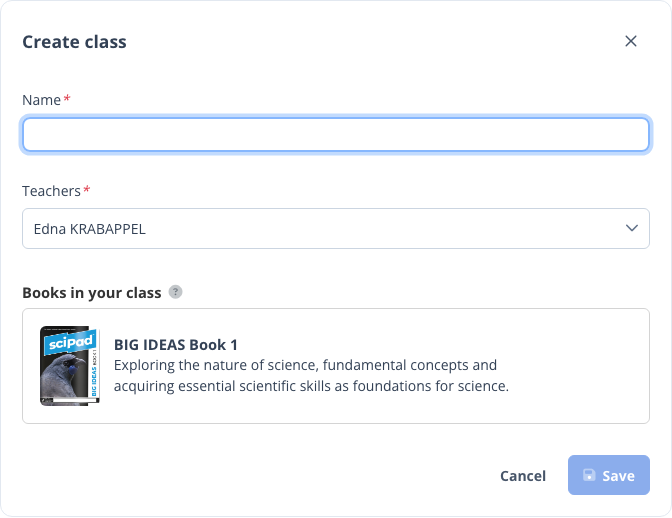
You have created your online class. The class code is shown – this will be shared with students.
You will now need to set your class up for the first lesson as all content is locked by default.
Click here to learn how to get the class ready for your first lesson.
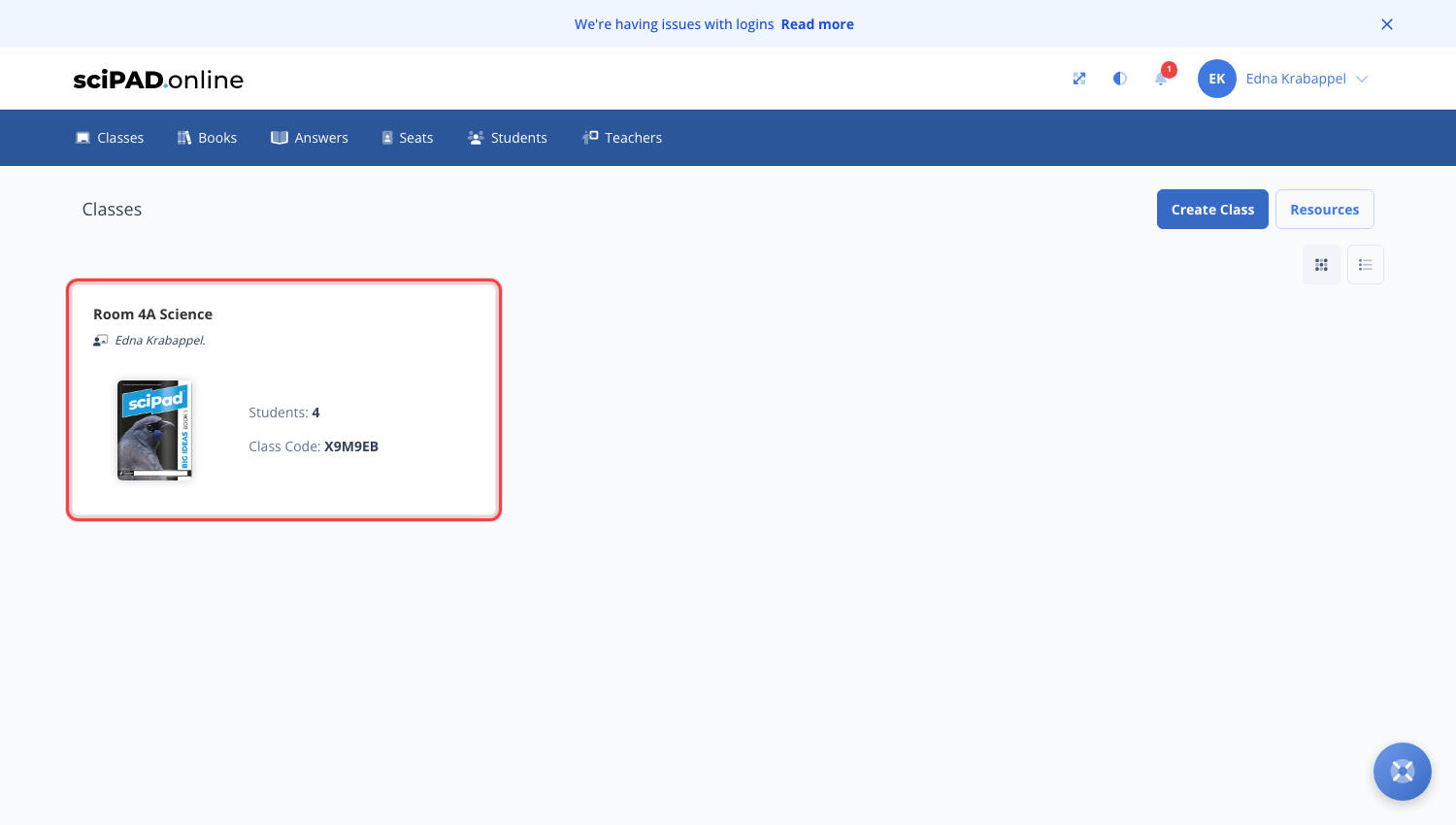
Editing your classes
Once you have clicked your class tab you can use the blue Edit button top right to edit the class name or books.
Important information / FAQ
Do I keep the classes each year?
No, they are reset each year, but if a student is added the next year with the same book, their completion status and all answer data remains.
Can we have multiple teachers for a class?
Yes, admin can edit the class and add multiple teachers. Both teachers will have full editing rights.
What books do a student see?
Once a student enters your class code, either during registration or once logged in, they will gain access to all the books you have linked to that class.
Please note that a warning will appear if the school does not have enough seats for a particular workbook. Students can not create an account if the class they are trying to join does not have any remaining seats.
Can I remove a book from a class?
Book titles cannot be removed from a class once seats have been distributed to students.
If you require this action, please contact us at support@scipadonline.com.au.
What happens if a student changes class?
If a student changes classes, they must enter the class code for their new teacher.
The previous teacher must remove the student from their class list. If they are not removed from the initial class the initial teacher will still be linked for unlocking lessons etc.
Can some students use a different workbook?
If you have a special circumstance where some students are using different workbooks, you will need to create a separate class for each group or workbook and assign distinct class codes accordingly.